
This guide will walk you through the entire setup – from creating a service account to configuring the necessary APIs and OAuth credentials.
By completing these steps, you’ll enable CyberPilot to securely sync user and group data from your Google Workspace environment and allow users to log in to the CyberPilot platform using their Google accounts.
Let’s get started 👇
Prerequisites
Before you get started with this guide, make sure you have:
-
Super Admin access to Google Admin Console (admin.google.com)
-
Owner or Editor access to Google Cloud Console (console.cloud.google.com)
-
Admin access to your CyberPilot account
-
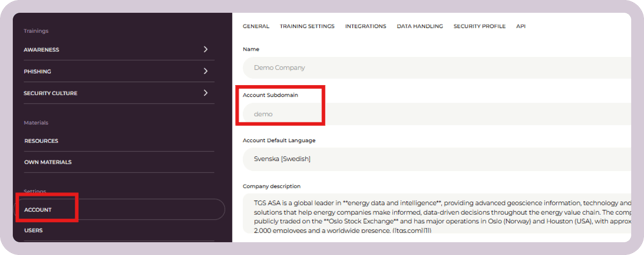
Your CyberPilot subdomain (find it under Settings > Account > General)
Part 1: Check your subdomain
Google Single Sign-On (SSO) and Google Workspace sync both need a subdomain on your CyberPilot account. New accounts get a subdomain automatically when they are created.
- In CyberPilot, go to Settings › Account › General.
- Check that a subdomain is shown.
If no subdomain is shown, contact your Customer Success Manager before you continue. Older accounts may need a subdomain added.
Part 2: Generate the Google config
To integrate Google Workspace with CyberPilot, you'll need to create a service account in Google Cloud Console. This enables CyberPilot to securely manage users and groups via API.
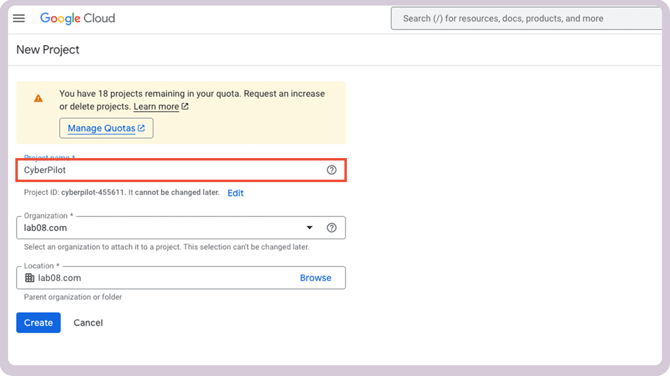
1. Create a project in Google Cloud Console
-
Click the project dropdown and select "New Project"
-
Name it (e.g., CyberPilot) and click Create
2. Enable Admin SDK API
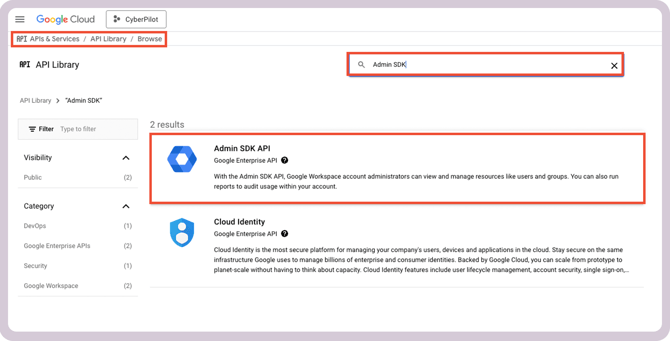
-
In your new project, go to APIs & Services > Library
-
Search for Admin SDK
-
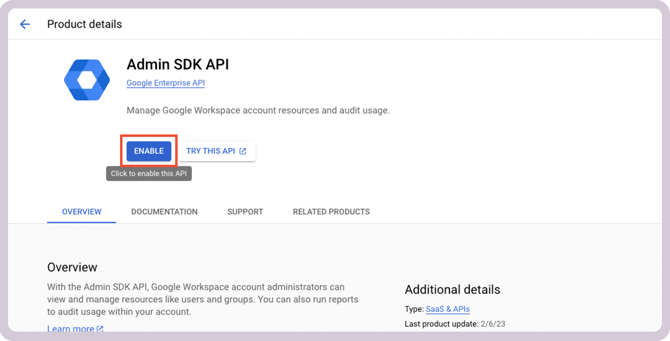
Click it, then click Enable
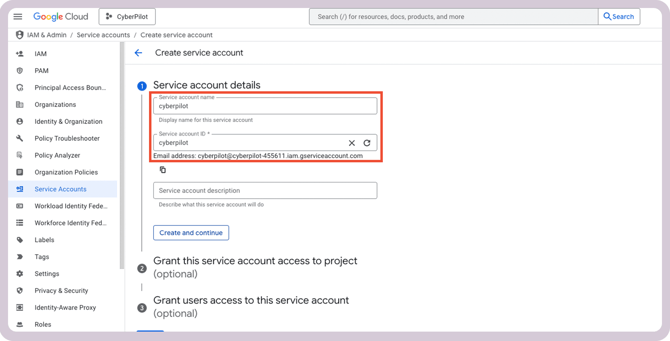
3. Create a service account
-
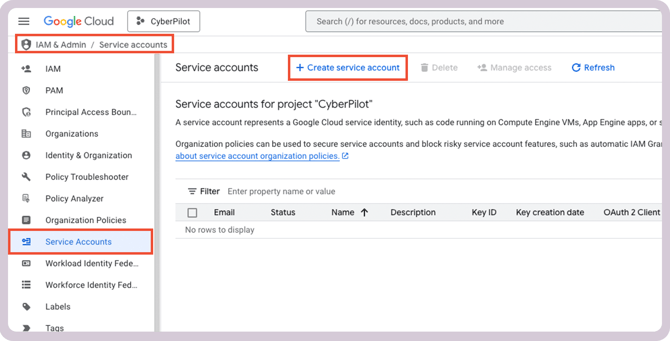
Navigate to IAM & Admin > Service Accounts
-
Click Create Service Account
-
Name it, then click Create and Continue
-
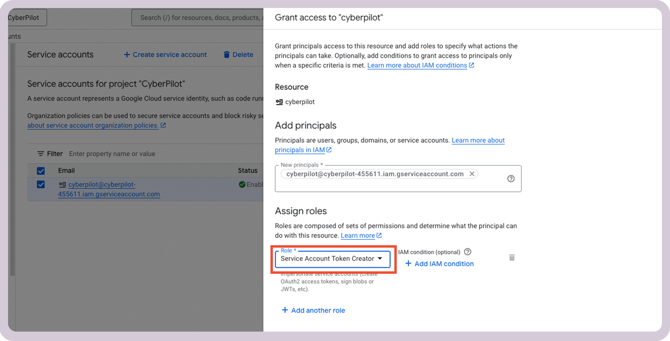
Grant the role: Service Account Token Creator
-
Click Done
4. Generate a private key
-
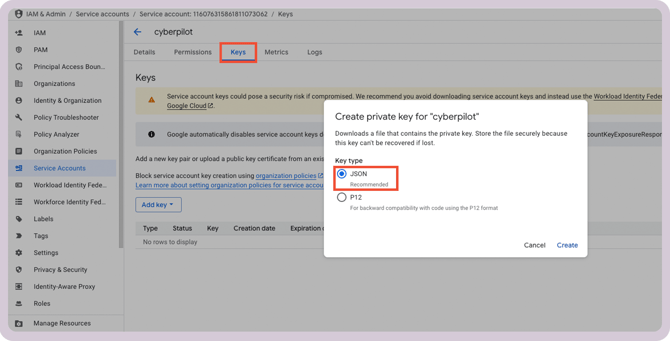
Click on the service account you just created
-
Go to the Keys tab
-
Click Add Key > Create New Key
-
Choose JSON format
This will download a .json file containing:
client_idclient_emailprivate_key
5. Delegate domain-wide authority
-
Under the service account settings, go to the Details tab
-
Click "Show Domain-Wide Delegation" and enable it
-
Note the Client ID – you’ll need it in the next step
6. Authorize API access in Google Admin Console
-
Go to: https://admin.google.com (requires super admin)
-
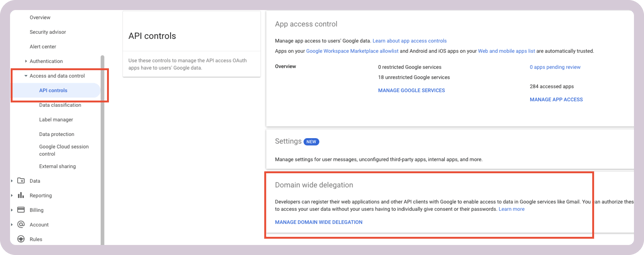
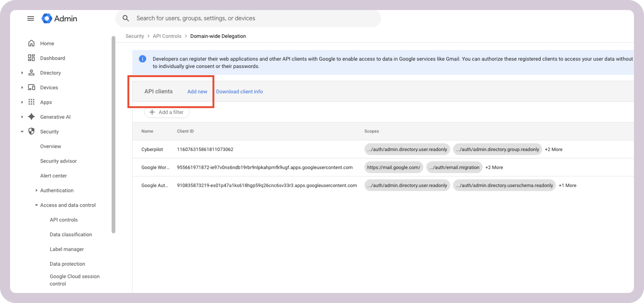
Navigate to: Security > Access and data control > API Controls > Domain-wide Delegation
-
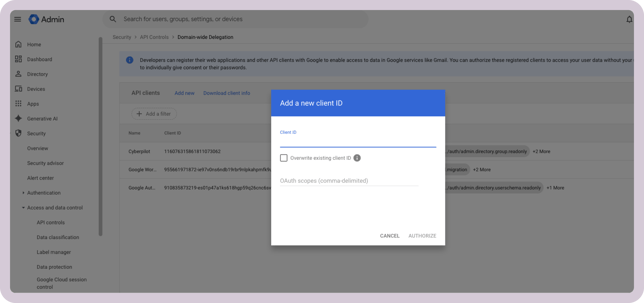
Click "Add new"
-
Enter the Client ID from your service account
-
Add the following scopes:
-
https://www.googleapis.com/auth/admin.directory.user.readonly -
https://www.googleapis.com/auth/admin.directory.group.readonly -
https://www.googleapis.com/auth/admin.directory.group.member.readonly
-
-
Click Save
7. Save the JSON key file
Keep the JSON key file somewhere safe. You upload the file to CyberPilot in Part 4. You don't need to copy or paste the private key.
Part 3: Set up and manage Google groups
You need to define which users will be synced to CyberPilot.
This is done through Google Groups. CyberPilot uses these groups to automatically identify and manage which users should be added or removed from your CyberPilot account.
1. Create or Select a Google Group
-
Go to your Google Admin Console
-
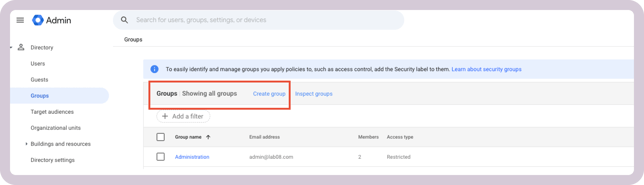
Navigate to Directory > Groups
-
Click Create Group
-
Enter a clear and descriptive name. For example:
-
Click Create
Tip: Each Google group is a set of users you want CyberPilot to sync. You can use several groups, for example one per department, and place each group in its own group in CyberPilot (see Part 4).
2. Add Members to the Group
-
Open the group you just created
-
Click Add Members
-
Enter the email addresses of the users you want to include
-
Assign each as Member, Manager, or Owner
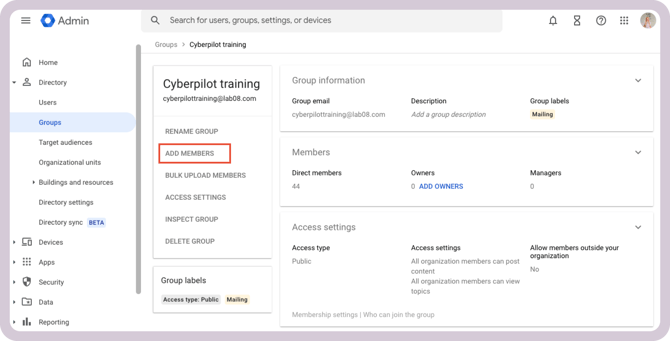
CyberPilot automatically syncs members of the group.
Managers and owners are included only if they are also listed as members.
Which users Google Workspace sync includes
- Google Workspace sync only includes users who are direct members of the group. If the group contains another group, the users in that nested group aren't synced, and the nested group can cause the sync to report an error. Add users to the group directly.
- Google Workspace sync doesn't use organizational units. Only group membership decides who is synced.
You can update group membership at any time, and CyberPilot will automatically reflect those changes during the next sync.
3. Find the group ID
Each Google Group has a unique Group ID that CyberPilot uses to identify which group(s) should be synced.
You’ll need to copy this ID and add it to your CyberPilot configuration.
Follow these steps:
-
Go to the Google Admin Console
-
Open Directory > Groups
-
Find and select the group you want to use
-
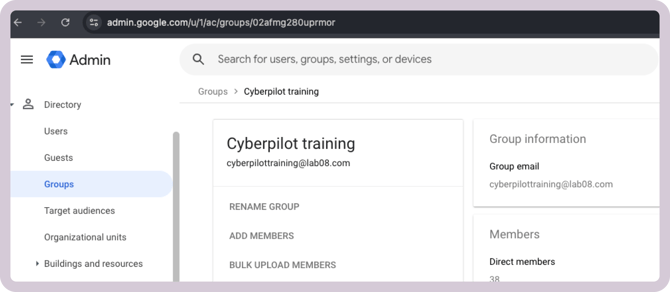
Look at the URL in your browser – the Group ID is included there
Example URL:
https://admin.google.com/ac/groups/1234567890abcdef/details
In this example, the Group ID is:
1234567890abcdefYou’ll need to repeat this process for each group you plan to sync with CyberPilot. Copy and paste each Group ID into the CyberPilot integration settings during setup.
Part 4: Add the Google group in CyberPilot
Once you have the Group ID from Part 3, connect the Google group to CyberPilot. Google Workspace sync then creates and updates users in CyberPilot automatically.
- Log in to CyberPilot.
- Go to Settings › Account.
- Open the Integrations tab.
- Select Google.
- Under Google Config, select User Management.
- Upload the JSON key file you downloaded in Part 2.
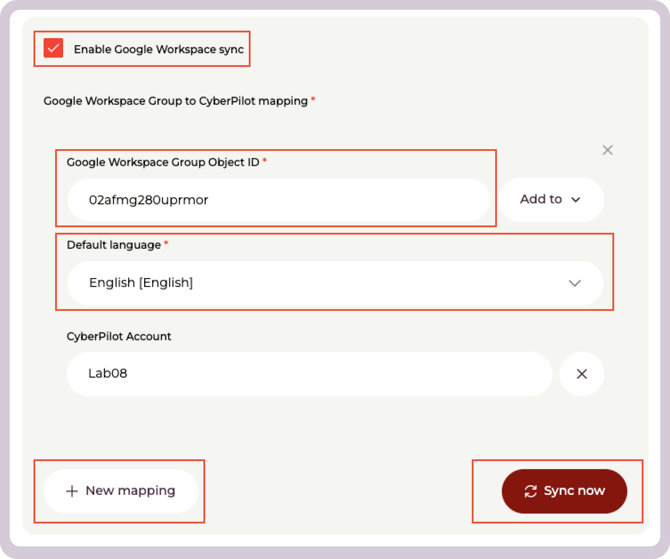
- Select Enable Google Workspace sync.
- Fill in the fields:
- Google Workspace Group Object ID: paste the Group ID from Part 3.
- Add to: choose where new users are placed in CyberPilot: the account, a branch or a group.
- Default language: choose the language for new users.
- Optional: to place users from different Google groups in different branches or groups, click + New mapping under Google Workspace Group to CyberPilot mapping. The branch or group must already exist in CyberPilot.
- Click Sync now.
To check that Google Workspace sync worked, go to Users and confirm that the members of your Google group are listed.
How often Google Workspace sync runs
Google Workspace sync runs automatically twice a day, at 03:30 and 17:30 UTC. To sync right away, click Sync now.
What happens when users leave or are suspended in Google
- Removed from the group: the user is deactivated in CyberPilot at the next sync. The user is not deleted, so their training history is kept.
- Suspended in Google: the user is deactivated in CyberPilot at the next sync. When you unsuspend the user in Google, the user is reactivated automatically.
- Deactivated by an admin in CyberPilot: the user stays deactivated, even if they are still active in Google.
- If a sync fails, no users are deactivated. Errors are shown on the Google integration page, in a banner on the dashboard and in the error log.
Which fields Google Workspace sync updates
Google Workspace sync copies these fields from Google to CyberPilot. The sync goes one way, so edit these fields in Google, not in CyberPilot.
|
CyberPilot field |
Comes from Google |
|---|---|
|
Username and email |
Primary email |
|
First name and last name |
First name and last name |
|
Department and job title |
Department and job title |
|
Office location |
Work address |
|
Mobile phone |
Work phone |
|
Manager |
Manager |
|
Language |
Preferred language |
|
Status |
Active or suspended |
The manager is linked when the manager is also a user in your CyberPilot account. If a user has changed their own language in CyberPilot, their choice is kept.
Part 5: Set up Google SSO
This part lets users log in to CyberPilot with their Google account using Single Sign-On (SSO).
Important: Google SSO needs a new, separate set of credentials: an OAuth 2.0 Client ID and Client Secret. Don't use the JSON key file from Part 2. The two are for different purposes:
-
Part 2 credentials (service account JSON key): used to sync users from Google groups.
-
Part 5 credentials (OAuth 2.0 Client ID and Client Secret): used for Google SSO login.
Before you set up Google SSO
- The CyberPilot username of each user must be the same as their Google email. If the two don't match, the user can't log in with Google SSO.
- Keep at least one admin on manual login. To do this, open the admin in Users, click Edit and select Use manual login. If Google SSO is set up incorrectly, users on manual login can still log in at app.cyberpilot.io.
- Two-factor authentication for Google SSO users comes from your Google account. CyberPilot doesn't add a second login step.
1. Open Google Cloud Console Credentials
-
Select the same project you created in Part 2.
2. Configure the OAuth consent screen
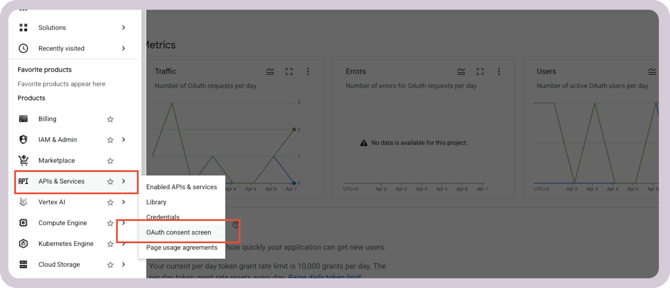
- In the left sidebare, go to APIs & Services
- Select OAuth consent screen
-
Under User type, select Internal.
-
Click create
- Fill in the required fields:
- App name: for example, CyberPilot
- User support email: select your admin email adress from the dropdown
- Scroll down to Developer contact information and enter your email adress
- Click save and continue
-
On the Scopes page, click Save and continue. You don't need to add any scopes.
-
Click Back to dashboard to finish
3. Create OAuth 2.0 Credentials
-
Go to APIs & Services > Credentials
-
Click + Create Credentials > OAuth 2.0 Client ID
-
Select Web application
-
Give it a name (e.g., CyberPilot SSO)
The Client Secret shown here is your SSO secret. It is not the same as the private key from Part 2. Store both the Client ID and Client Secret. You need them in step 5.
4. Add the redirect URI in Google
-
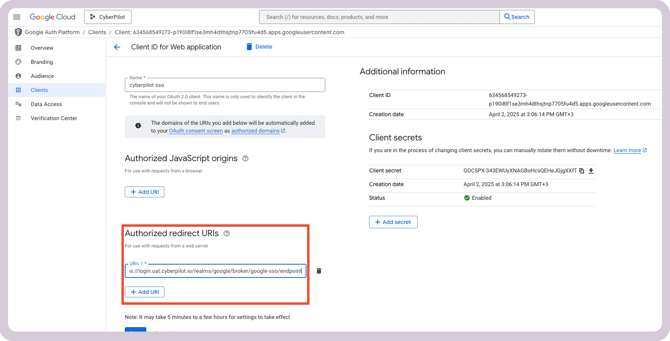
Under Authorized redirect URIs, add this URI. Replace subdomain with your CyberPilot subdomain from Settings › Account › General:
https://login.app.cyberpilot.io/realms/*subdomain*/broker/google-sso/endpoint -
If your CyberPilot account is set up through a partner, such as itm8, the redirect URI uses your partner’s login address instead. Your partner or your Customer Success Manager can confirm the correct address.
-
Click Save
-
Copy the Client ID and Client Secret from the confirmation dialog
- In CyberPilot, go to Settings > Account > Integrations > Google
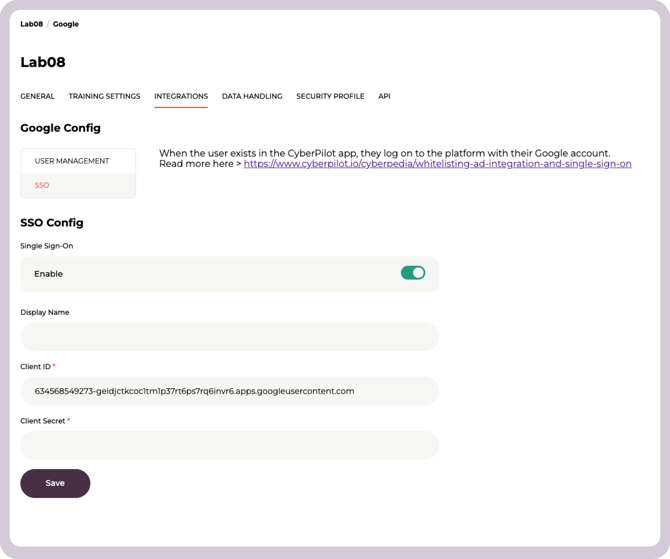
- Under the SSO section, paste your Client ID and Client Secret
- Click Save. Google SSO is turned on for your account.
Check that Google SSO works
Open your CyberPilot login page in a private browser window and log in with a Google account whose email matches a CyberPilot username. You are sent to Google and then back to CyberPilot.
Still have a question?
Contact us at support@cyberpilot.io