
Today, many security operations teams have set up email notifications for user reported emails under the "User reported" settings in Microsoft Defender.
However, when running phishing simulations with these settings, the recipient of these notifications also gets alerted to simulations. This means that security teams can spend time going through reported simulations alongside real alerts.
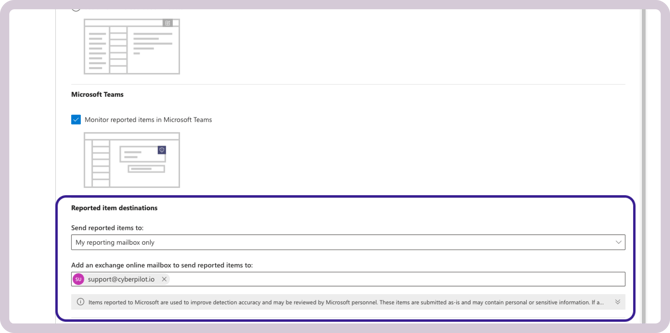
To avoid this, the alert notifications should be set at the "Alert" level instead. Here's how to do that.
Part 1: Configure user reported settings
- Go to Microsoft Defender portal: https://security.microsoft.com
- Go to Email & collaboration > Policies & rules > Threat policies > User reported settings
- Set the reported item destination to Microsoft only:
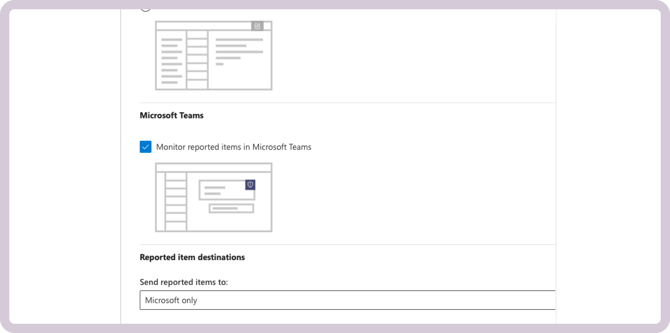
Part 2: Configure the alert notification
-
Go to Microsoft Defender portal: https://security.microsoft.com
-
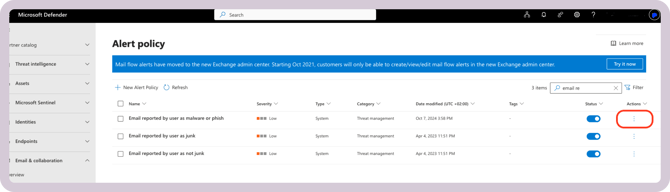
Go to Email & collaboration > Policies & rules > Alert policy
-
Find the default policy named: Email reported by user as malware or phish.
-
This policy generates an alert when users report messages as phishing using the built-in Report button in Outlook, or the Report Message / Report Phishing add-ins.
-
-
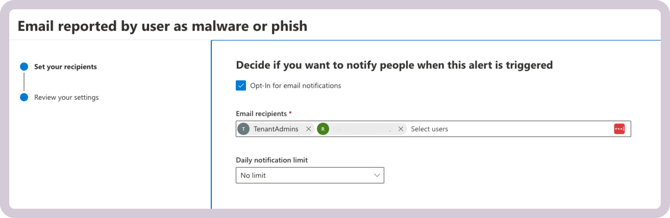
Open the policy and enable/configure Email notifications.
-
Add the people or shared mailbox/distribution address that should receive the alert notifications.
-
Set or confirm the daily notification limit, then save.
Microsoft notes that built-in system alert policies are turned on by default, but you can configure whether email notifications are sent and who receives them.
It can take up to 24 hours after creating or updating an alert policy before the change is active.