
Below are some of the most common issues with a linked guide to how you can solve them.
👉 This guide is for Microsoft Defender only.
What went wrong?
- I can't find the email in my inbox
- Defender stops the emails from getting into my inbox
- I tested the phishing simulation and received the email. Now, the campaign has started, but other users can't find the email in their inbox.
- The emails are sent from a new domain, but we can't find them in our inbox
- I reported an email, but it doesn't show it on the CyberPilot platform
- The CyberPilot platform says that me or a user clicked the link, but I'm confident that's not true
Emails aren't received (Microsoft Defender)
This guide will help you if emails aren't received and you’re using Microsoft Defender as your only email security tool.
To troubleshoot, have your Microsoft Defender admin follow the steps below.
Cross-reference your whitelisting setup with the pictures provided below - are all the IP’s, domains and URL’s correct?
Whitelisting verification
-
Go to this link → take a screenshot of the entire page and verify that the IPs in the picture below are present.
Verification: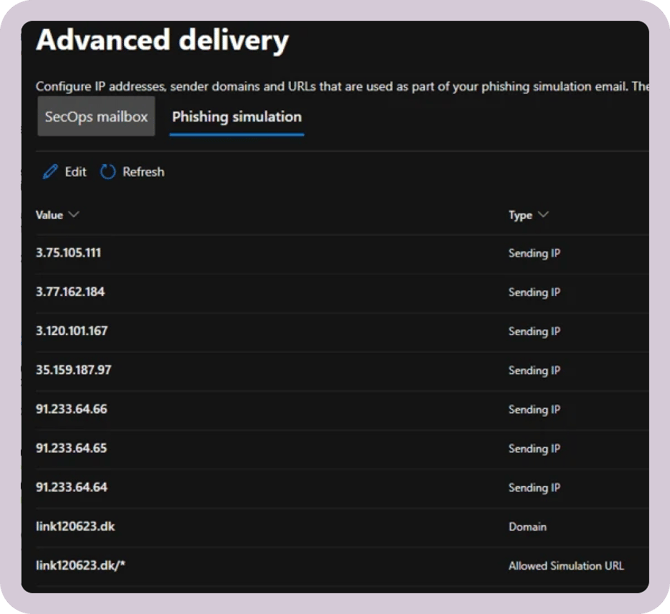
-
Go to this link → double click on Connection filter policy (Default) → take a screenshot of the configuration on the right hand side and verify the IPs in the picture below are present.
Verification: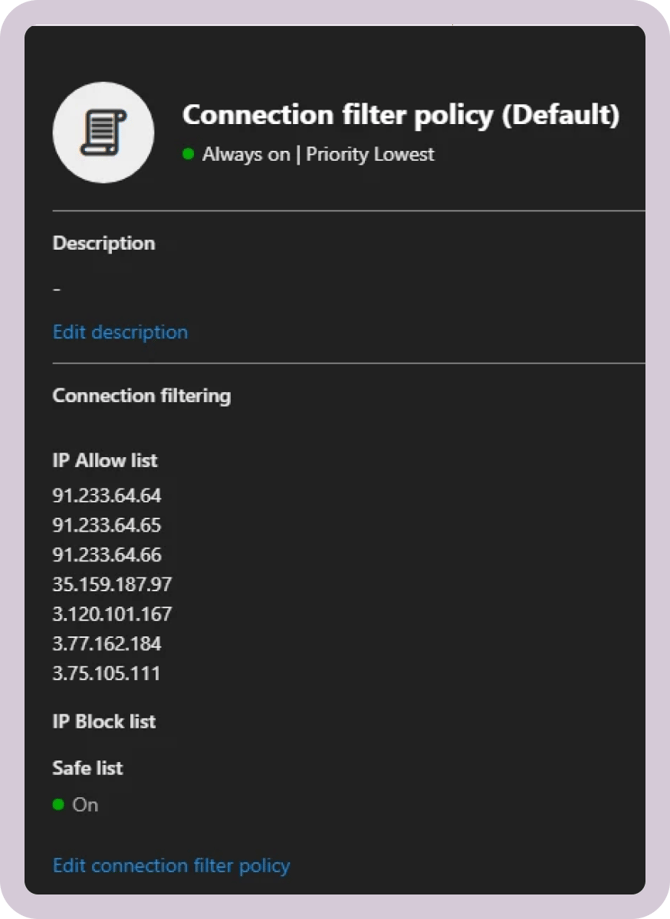
-
Check that emails aren't quarantined here → take a screenshot if campaign emails are found.
If you need more help with the whitelisting see the steps in this guide.
Depending on your setup and architecture it might be difficult to troubleshoot on your own.
If following these steps does not solve the problem, please contact our support (email or chatbot in the app). Remember to include the screenshots described in the guide above, as well as a description of the issue and screenshots of:
-
Mail connector rule (if you've set it up)
- The screenshot should look like this:
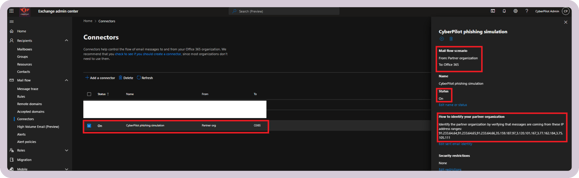
-
Mail-flow rule (SCL-level, if you've set it up)
- The screenshot should look like this:
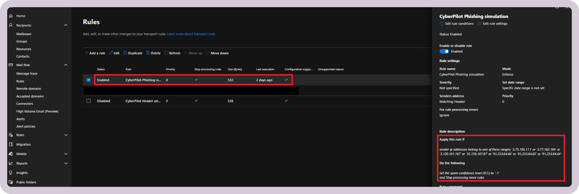
- Screenshots of your whitelisting, as explained in this guide above
-
Reported simulation emails with the Phish simulation column visible
- The screenshot should look like this:
Data is missing in reporting (CyberPilot App)
This guide will help if your dashboards on the CyberPilot app are missing data, even after you've correctly whitelisted.
For example, if your phishing campaigns seem to be working as intended and your users are receiving the emails, but the data on the CyberPilot app isn't looking right:
- Submission rate does not match what your users tell you
- Your users reported the email, but that's not showing up in the platform
-
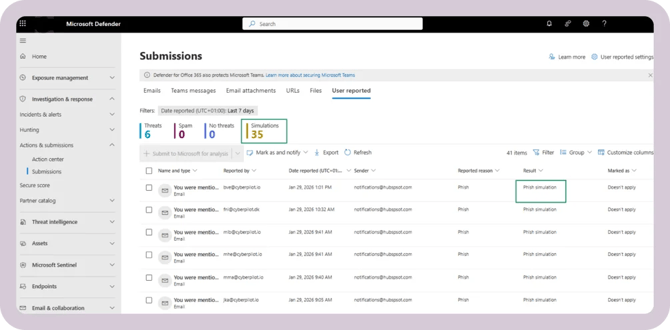
Go to this link → check that the result is Phish simulation (add the field result via Customize columns) → take a screenshot and save it.
Verification:
-
If the result is phishing simulation, but there’s still data missing, verify that you have followed these guides step-by-step:
-
Reporting via Outlook report-button & Azure permissions
-
The reporting button will not work on hybrid or on-prem solutions. This is a technical limitation on Microsoft’s side.
-
-
Follow this link → Click the big blue bar with text similar to: Start recording user and admin activity → Wait 60 minutes for changes to apply.
-
If the result is not Phishing simulation then you should verify whitelisting as described here
-
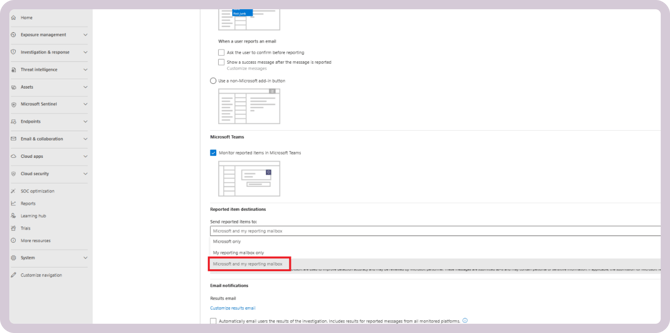
Go to Security & Compliance → scroll down → verify the setting of send reported items to
- If you already have this set to notify a reporting inbox, then it should be changed to Microsoft and my reporting mailbox.
-
In edge-case scenarios, this will force the submissions to be logged where they weren’t logged before.
Depending on your setup and architecture it might be difficult to troubleshoot on your own.
If following these steps does not solve the problem, please contact our support (email or chatbot in the app). Remember to include the screenshots described in the guide above, as well as a description of the issue and screenshots of:
-
Mail connector rule (if you've set it up)
- The screenshot should look like this:
-
Mail-flow rule (SCL-level, if you've set it up)
- The screenshot should look like this:
- Screenshots of your whitelisting, as explained in this guide above
-
Reported simulation emails with the result column visible
- The screenshot should look like this:
False positives in reporting
This guide will help you if your dashboards in the CyberPilot app show inaccurate data, even after you've correctly whitelisted.
Here, your phishing campaigns are working as intended and your users are receiving them, but the data shown in the platform is not correctly representing your users' interactions with the emails.
If Email reported is at 0% go to this troubleshooting guide..
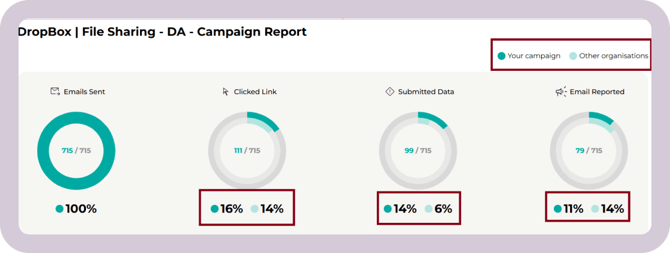
If the results for Submitted data or Clicked link are above 50% or stand out significantly from the average of other organizations, this could indicate that something's not working as intended.
You can test this by asking your users who appear to have clicked the link, "did you actually click it?"
Here's an example of how a campaign report should look:
Here's an example of a campaign report suggesting a problem with the data:
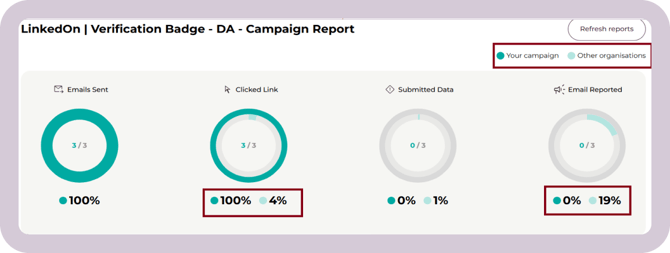
Why does this example suggest a potential problem?
-
It's suspicions that 100% of users clicked the link.
-
It's also suspicious that none of the users reported the email.
How to troubleshoot:
-
Make sure that whitelisting is set up properly in Defender, see this guide.
-
This is a tricky scenario as issues often are caused by third party security products interacting with or analyzing the emails sent from our phishing campaign.
-
If whitelisting is done correctly, try the solution explained in this guide.
-
If the above does not solve the issue, your IT partner should be able to help you identify other security products that may interfere with the emails or links. Tell them to whitelist the IP’s, domain and URL like described in this guide.
-
Depending on your setup and architecture it might be difficult to troubleshoot on your own.
If following these steps does not solve the problem, please contact our support (email or chatbot in the app). Remember to include the screenshots described in the guide above, as well as a description of the issue and screenshots of:
-
Mail connector rule (if you've set it up)
- The screenshot should look like this:
-
Mail-flow rule (SCL-level, if you've set it up)
- The screenshot should look like this:
- Screenshots of your whitelisting, as explained in this guide above
-
Reported simulation emails with the result column visible
- The screenshot should look like this: