
Here's a small tour of how you can plan and manage your phishing campaigns in the Phishing planner.
You can use the Auto Phishing tool to plan and manage simulations by yourself in the CyberPilot App. The tool gives you the ability to:
- Manage your existing phishing training plan
- Choose any simulations you want from the catalogue
- Ensure your organization is exposed to all 8 phishing signs
- Schedule flexibly - you can "drag" and "pull" simulations around to reschedule them
- Whitelist one time for all campaigns
- Send test emails from the platform
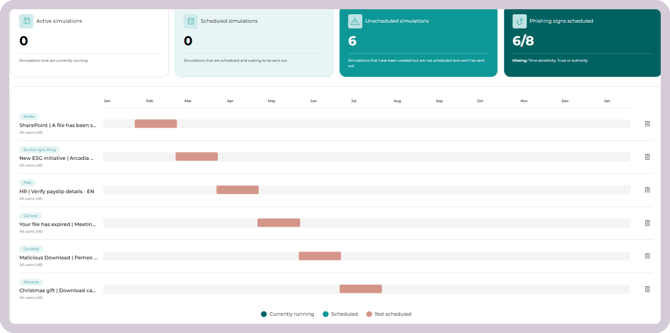
To find the tool. go to Phishing > Phishing planner in the left menu.
How to use the auto phishing planner
The basic process is:
- Add simulation/campaign(s)
- Change simulation dates
- Whitelist
- Schedule simulation(s)
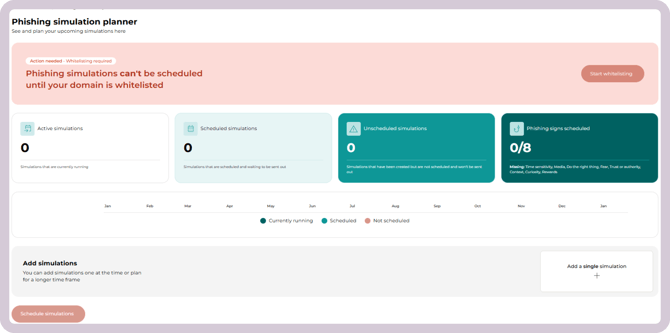
1. Add simulation/campaigns(s)
As a customer, your plan will already be populated with several campaigns for your organization.
If you have a free trial account, you will be able to manually set up phishing simulations by following the steps below.
Adding simulations/campaigns to your plan
Even though the plan is already populated, you can edit it by adding, removing, and rescheduling campaigns.
- You can "drag" and "pull" campaigns in the timeline to modify the schedule
- You can delete campaigns you don't want to use
- You can add simulations from the phishing campaign catalogue
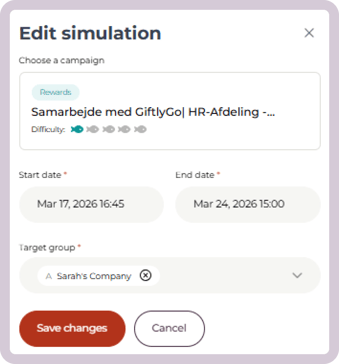
2. Select a start time, end time, and target group
The start date is when the first user in the target group will receive the email.
The end date is when they last user will receive the email. 3 working days after the last email is sent, the simulation will be completed.
The target group can be the entire account, a group, or a branch.
⌛ All campaigns are scheduled with a "drip" logic, meaning the emails are sent to your users over time between the simulation start and end times.
Once all of these fields are filled in, you will be able to save the simulation and move to the next step, whitelisting (if you have not already done this).
3. Whitelist
Whitelisting is required to activate your phishing schedule.
Without whitelisting and confirming that it has been done successfully, your campaigns will not run.
Follow the steps in the whitelisting guide, including sending yourself a test email and confirming that your whitelisting has been successfully completed.

4. Schedule simulation(s)
After you have simulations in your plan and you have completed whitelisting, you are ready to schedule your campaign(s).
You can see the status of your campaigns based on their color:
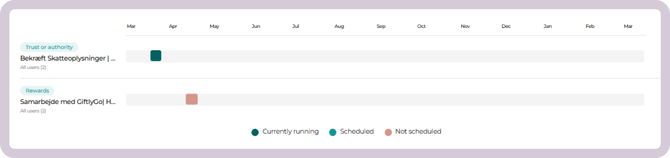
After your simulation has been scheduled, it cannot be edited. If you want to make edits to a planned simulation, you must delete the simulation and create a new one.
When simulations are in draft or scheduled, test mails can be sent. When simulations are live or completed, test mails cannot be sent.
Notification before your campaign runs
The person responsible for CyberPilot training in your organization will receive an email notification 7 days before the campaign starts as well as after the campaign has been completed. This way you don't forget when your training is about to happen.