
Already working with customized CyberPilot content? This article covers the editor too. Everything in this guide applies whether you're building from scratch or editing an existing course. Clone and customize CyberPilot content here.
In this article, we cover:
- How to create your own training/materials
- How to create and edit your own presentation
- How to create your own quiz
- How to translate your content
- Enrollments and reporting for own content
How to create your own training/materials
To create your own course
- Under Trainings click on Awareness and then Content
- Click Create new
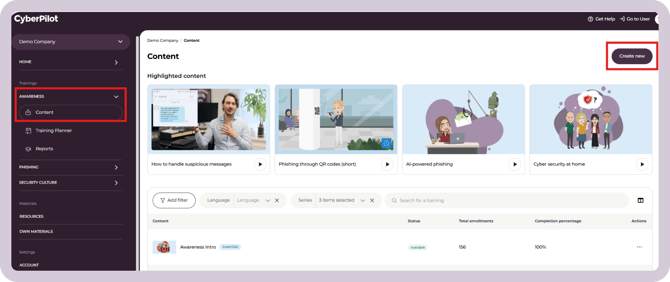
Left side of the screen
First, fill out the relevant information about the course on the left-hand side.
You can enter the content title and description for each language and also add a picture.
Right side of the screen
On the right-hand side, you can see the Content Builder. Here you can control which languages the content should be available in.
This selection of languages for the content is separate from the languages you selected for the title and description. A wider selection of languages are available for the content.
On the Content Timeline you can add the individual parts that should make up the training.
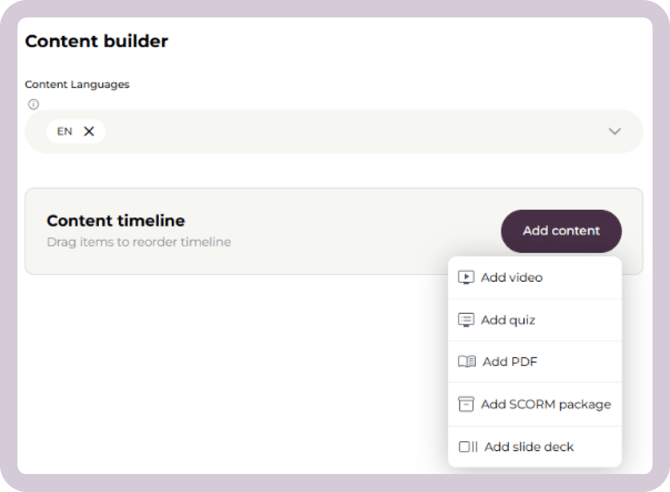
You can upload the following files:
- Videos (mp4 file type)
- PDF documents
- An e-learning file the SCORM format
You can create the following yourself in the app:
- A quiz
- Slide decks
This way you can compose an entire course. The elements you add will be shown to users in the order they’re shown.
For example, you might add an introductory video, then PDF pages with further instruction and finally create a quiz to test the user’s learning.
If you’ve added multiple languages, you need to add one of each element to each language.
How to create and edit your own presentation
The slide deck option lets you build a visual, interactive slide presentation. This guide walks you through the different elements and features available in the slide editor.
Navigating the slide editor
Language settings
You can manage the different language versions of your content on the slide level. If you need to add more languages, follow this guide.
Use the Copy to function to copy a slide's content – including text and images – across language versions.
Note that this copies the content as-is and does not translate it automatically. This can be used to get a base for you to manually translate. Changes made in slides in one language will not affect the slides in another language.
Slides timeline
The slides timeline gives you an overview of all slides in your content.
From here you can add and delete slides, and reorder them by dragging and dropping them into the desired order.
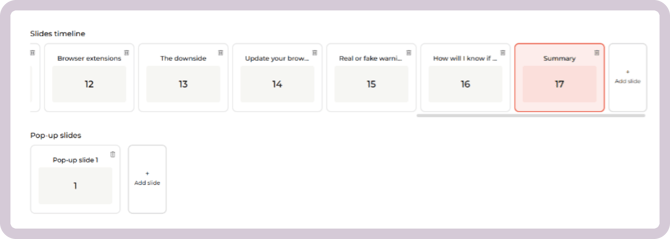
Pop-up slides won’t show up as part of the normal course flow, but can be added as pop-ups to normal slides. See the Infobox section below.
Slide templates
Slide templates control the basic layout of a slide. Four different layouts can be found under Template settings in the slide editor.
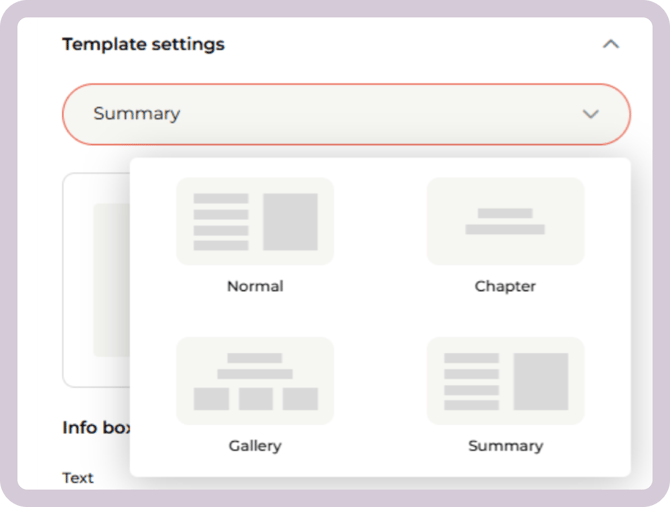
Each slide can use one of the following templates:
Normal
- The standard slide layout.
- Content is aligned to the left, and any images you add are placed on the right side of the slide.
Chapter
-
Used for pauses or section headlines between topics.
-
Text is centered horizontally across the slide, making it stand out from regular content slides.
-
You can switch text alignment between left and center.
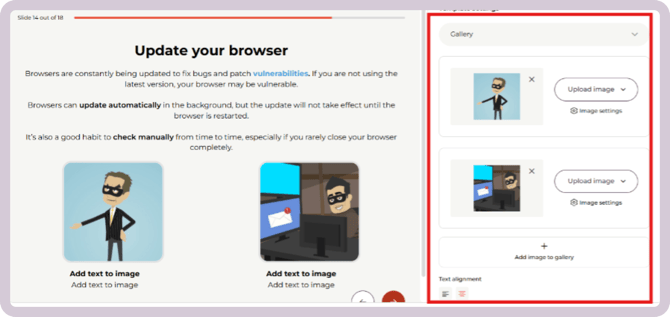
Gallery
-
Similar to the normal layout, but allows you to add multiple images.
-
Images are displayed at the bottom of the slide, and you can add a caption beneath them.
- You can switch text alignment between left and center.
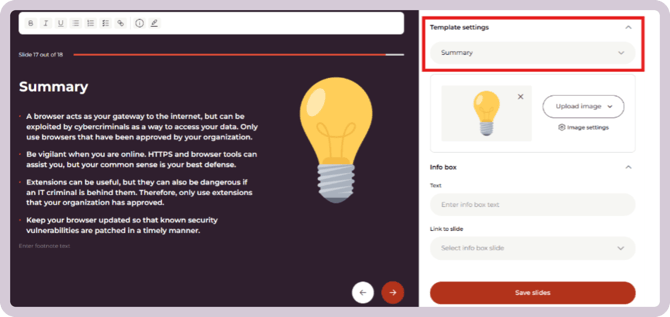
Summary
-
A more compact layout with a smaller background, designed to round off a section or module.
-
Use it to recap what the course has covered.
Saving your content
Your content is saved by clicking Save within the slide editor. You can also exit by clicking the X in the top right corner – you will be prompted to save your changes before closing.
Text editor
You can write and edit the contents of a slide simply by clicking on the place you want to write and starting to type.
The text editor lets you format your content with bold, italics, underlining, and bullet points (available as dots, numbers, or checkmarks).

You can also:
-
Add a link – Highlight the relevant text, click the link icon, enter the URL, and click Save.
-
Change text color – Highlight the relevant text and click the pencil icon to choose a colour.
-
Add a tooltip – Tooltips are also added through the text editor. See the tooltip section below for a full guide.
Adding graphics and interactive features to your slides
The slide editor gives you a range of elements to work with. You can add and combine the following on each slide:
-
Visual elements – images, GIFs, SMS and email examples
-
Tooltips, infoboxes, and footnotes
Add visual elements to the slides
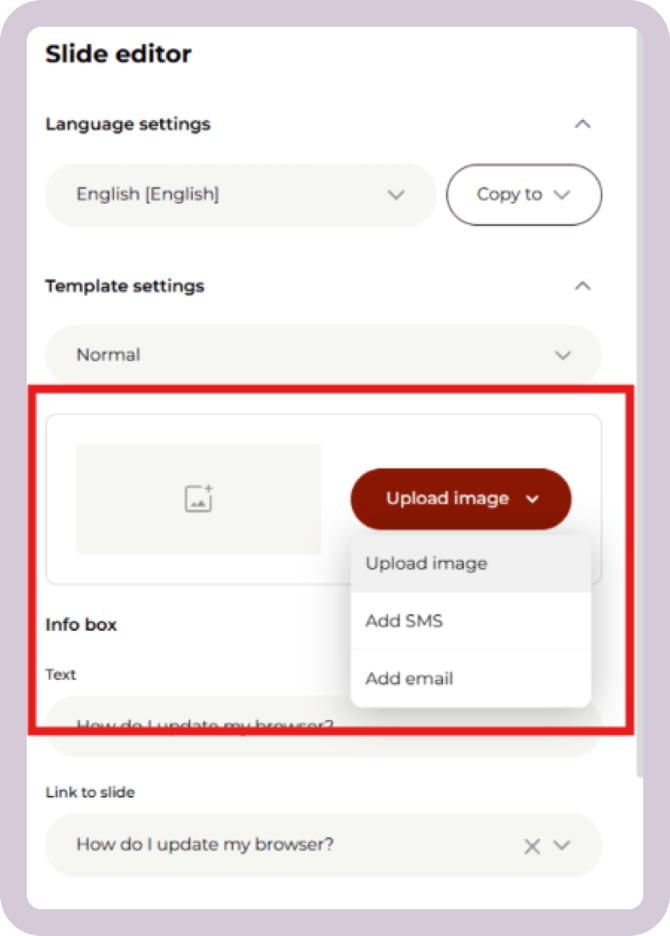
You have three options for adding visual elements to a slide:
-
Upload image
-
Add SMS
-
Add email
These are all found on the right side of the slide editor.
How to upload an image
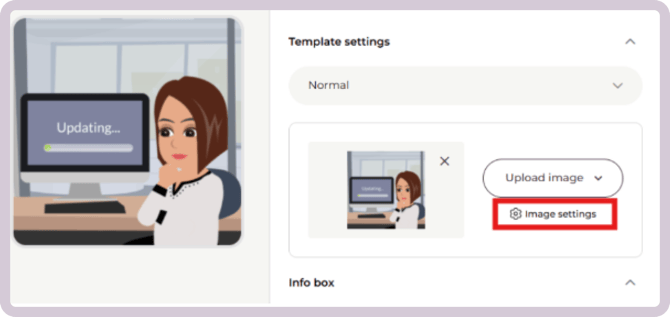
- Upload an image or a GIF to your slide
- By clicking on Image settings you can add a border around it and enable zoom so users can click to enlarge it.
- Supported file formats include JPG, PNG, and GIF.
- Maximum file size is 2MB.
How to add SMS
- Add an example SMS, useful for illustrating smishing scenarios.
- Add a sender name and write the content of the SMS.
How to add an email
- Add an example email, useful for illustrating phishing scenarios.
- Fill in the sender, recipient, and subject line, and write the content of the email.
Infoboxes
An infobox lets you link to additional information that users can explore if they want to dig deeper. This could, e.g., be a more thorough explanation of a topic that would be too detailed to include on the slide itself.
How to add an infobox
To add an infobox, first create a pop-up slide under the slides timeline with the content you want to include.
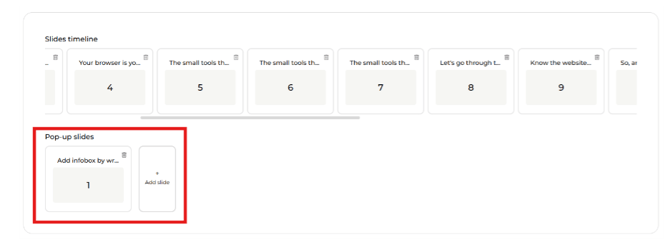
Then, in the infobox field on the right, enter the title that will appear on the infobox and link it to the relevant pop-up slide.
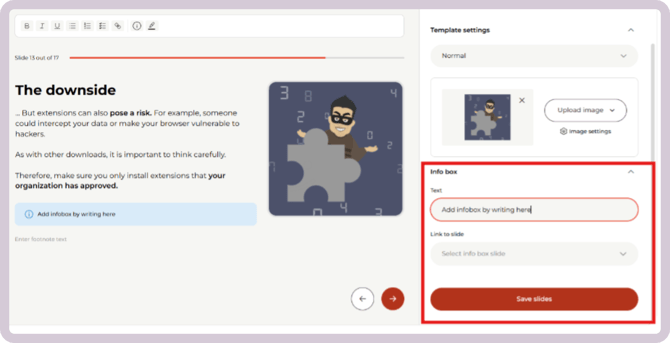
To remove an infobox, delete the pop-up slide and clear the title text in the infobox field that references it.
Tooltips
A tooltip lets you add extra information that appears when a user hovers over a word or sentence. This is useful for explaining terms or adding context without cluttering the slide.
How to add a tooltip
To add a tooltip, highlight the relevant text and click the i icon in the toolbar. Then write your tooltip text in the text field that appears.
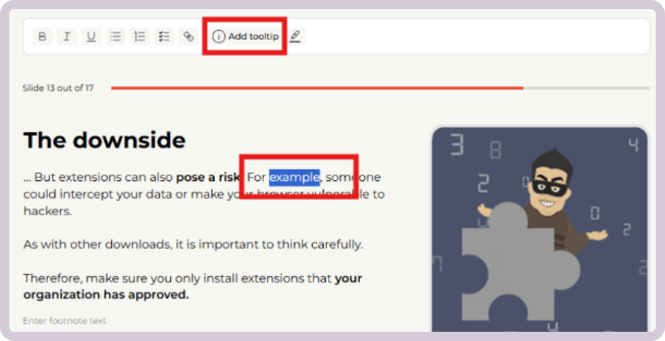
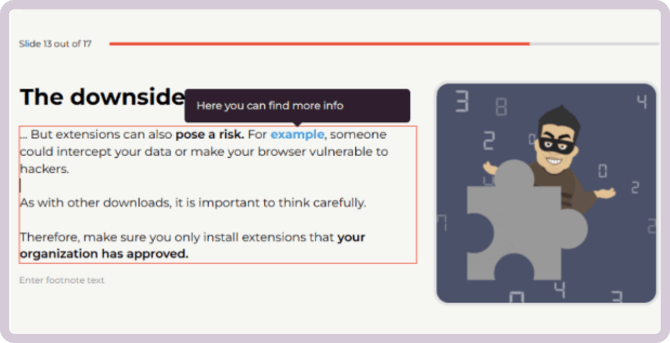
To remove a tooltip, delete the text from the text field.
Footnotes
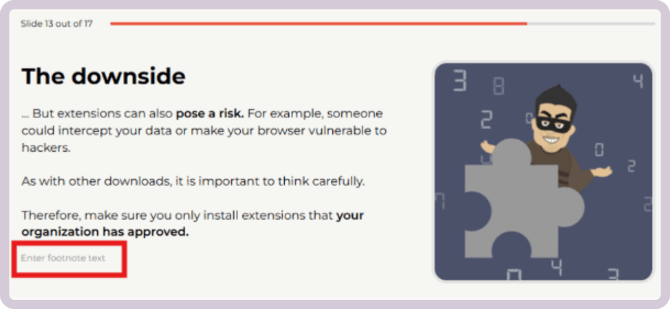
A footnote lets you add text in a smaller font at the bottom of a slide – useful for adding sources or supplementary information.
How to add a footnote
To add a footnote, simply write in the text field at the bottom of a slide.
How to create your own quiz
When you add a quiz element, you need to fill it in with questions.
Press the Create Quiz button on the quiz element.
Here you can add questions.
- Each question needs to be filled out in all languages you’re using
- Each question can have an attached picture (optional)
- Mark which answer(s) is correct by checking the boxes next to them
- Each question can either ask the user to select one or multiple correct answers
-
- To create a question with multiple correct answers, simply check multiple boxes
-
- This means a user will have to select all the correct answers to get the question right
- When you are done filling in questions, press Save at the bottom of the screen
Note: The number of questions and which answers are marked correct will be the same across all languages.
If you add/delete a question or change what answer is marked correct for one language, this will take effect in all other enabled languages.
How to translate your content
See this guide for how to translate content.
Enroll the training to your users
After you've saved your own training content in the app, it's ready to be enrolled to your users.
You enroll your own content the same way you would enroll CyberPilot training - via the Training Planner. See how the training planner works here.
💡For example, you might want to add your IT security guidelines to your onboarding plan, to make sure your new users always read it when they are first getting started.
Track completions for your own content
If you create any training, you can track users' enrollments, completions, and scores exactly the way you do for CyberPilot content.
When you upload a PDF, you can choose if users should be asked to confirm that they have read and understood the content at the end of the PDF. This confirmation registers as a completion.
Read more about reporting here.
Still have a question?
Contact us at support@cyberpilot.io