
There are two ways to customize CyberPilot content:
- Customize with AI – quickly adapt existing content to your organization using AI.
- Clone content – create a copy of existing content and edit it manually.
In this article, we cover:
Customize content with AI
With AI customization, you can quickly adapt existing content to match your organization's context. The AI uses a short company description as a starting point and customizes the content for you, which you can then review and adjust before publishing.
What's available now vs. coming later
When you open Customize with AI, you'll see a panel showing what's ready to use today and what's planned for this feature:
Available now:
- Organizational context — training adapts to your organization's context.
- Manual editing — you can edit any AI-customized content yourself afterward.
- AI translation — translate your customized version to more than 50 languages.
Coming in 2026:
- Points of contact — replacing generic contacts in training with specific people from your organization.
- Guidelines integration — incorporating your own guidelines into training where relevant.
- Role-specific training — adapting content to a user's role.
To be announced:
- Video customisation — adapting story-format training to your organization.
You can collapse this panel if you don't need it — your choice is remembered the next time you open Customize with AI, even for a different piece of content.
Step by step guide: Customize with AI
- Go to Content and find the content you want to customize
- The pencil icon shows which content is available for AI customization
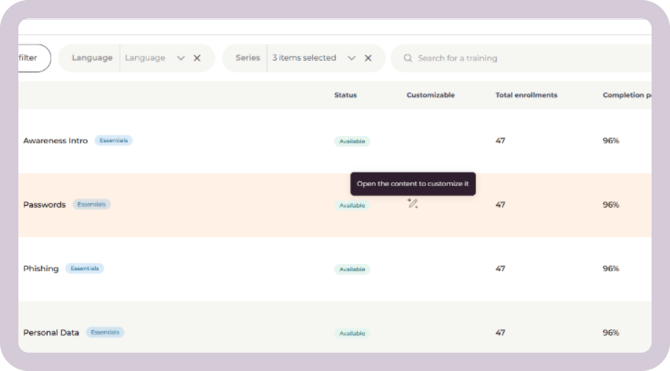
- Click on the content and start AI customization
- Click Customize with AI to begin the process
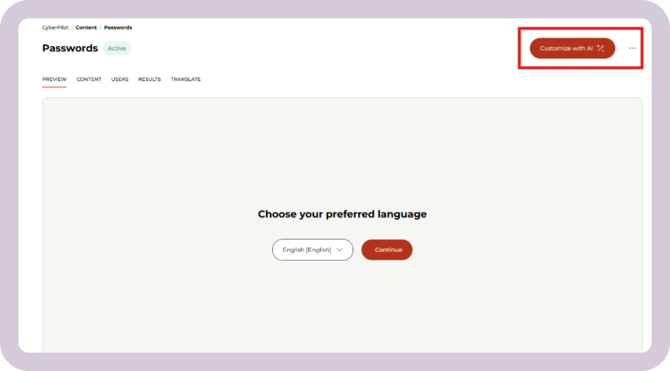
- Follow the customization flow
- Choose the language you want to customize first (Danish or English)
- Let the AI customize the content. This may take a few minutes.
- Review the customization
- On the left, you’ll see the original content
- On the right, you’ll see the customized versions with the changes highlighted
- You can edit any text by clicking the pencil icon in each text box
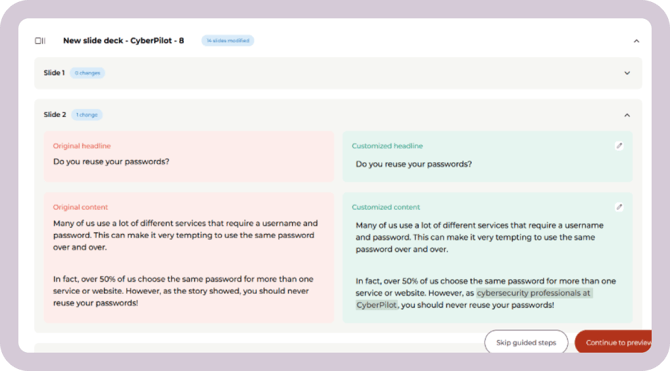
- Preview the final content
- Make sure the content looks right
- Translate the content
- If you want to make the content available in other languages, choose the desired languages and click Translate.
- You can also skip this step and translate later.
- Important: If you skip translation for now, don’t forget to consider it later. Translation to relevant languages ensures all users can access and understand the content.
- Add to training planner
- Once you’re satisfied, add the content to your training plan.
- If the original content is already in the training planner, you should replace it with the customized version.
Find your customized content
After customization, you’ll find the customized version under Content.
The content is named “Course name – organization name” and is tagged as custom content.
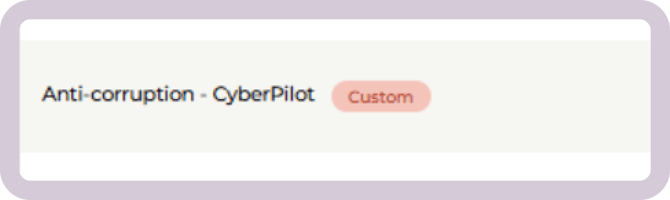
Edit and translate the content
You can edit and translate the content at any time.
-
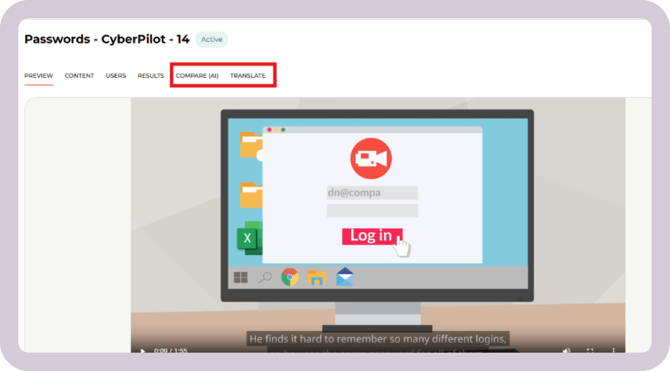
Review and adjust the AI customization under Compare (AI)
- Translate the content under Translate. See more about how to translate content in this article.
When you click Save, your changes are automatically applied to the custom content in your training planner.
If the course has already been translated, you’ll need to retranslate it for the changes to appear in other languages.
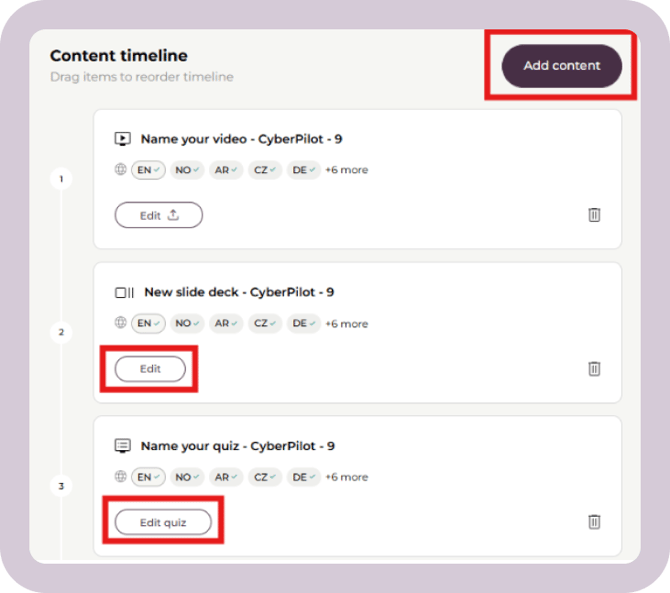
You can also use edit text and images in the Content Timeline. You can read more about how do this here.
How does it work?
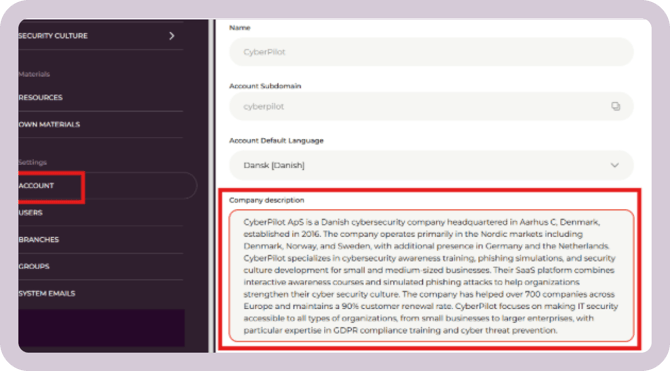
The AI customization is based on a short company description of your organization to adapt course content to your context and tone.
This description is automatically created using publicly available information about your organization. The AI uses it to adjust course content so it better reflects your organization and context.
You can view the company description under Settings → Account → General.
This description is locked and cannot be edited.
Clone CyberPilot content
It's possible to make a copy of CyberPilot content and then edit it to best fit your own organization. You can do this through Cloning.
What is cloning?
Cloning creates an editable copy of a piece of content. Since CyberPilot's original content can't be edited directly, cloning lets you make a copy that is owned by your account, which you can then edit and translate as needed.
Why should you clone content?
CyberPilot's original content can't be edited. So if you want to make any changes, you can use the cloning option to make a copy that is owned in your account and then edit it as if it's your own content.
How does it work?
Not all content can be cloned. Look for the Clone button on the content you want to copy.

Click Clone content and a cloned version with your account name is now added to your account. You can then customize it and enroll it to your users.
For multi-account admins: copying content across accounts
If you manage multiple accounts, clicking Clone will give you two options:
-
Copy to current account creates a cloned copy in the account you're currently working in.
-
Copy to a different account sends the cloned copy to another account you have access to.
This means you only need to make edits once. For example:
-
Clone a course into one account and make your changes there
-
Once you're happy with the result, clone that edited course to your other accounts using Copy to a different account.
What happens if you leave without making changes
If you leave the editor right after starting AI customization, cloning content, or creating new content — before making any changes — you'll see a message:
"You haven't made any changes. Keep this content or discard it?"
- Keep leaves the content as an untouched draft under Content, so you can pick it up again later. This is the default — nothing is deleted unless you choose Discard.
- Discard deletes the content immediately and returns you to the content overview.
How to edit and add content
See this guide for how to edit slides and quiz.
How to translate content
See this guide for how to translate content.
Content which can't be customized
Most Essential courses can be customized and cloned.
However, some courses, such as “Back in shape after the holiday” and “The Physical Surroundings”, contain more advanced visual or interactive elements. These cannot be recreated in the text-based format used for customization, and therefore can’t be customized or cloned.
Training in the Stories format can’t be customized or cloned, as it relies primarily on video rather than text.
Also, content that has already been customized with AI or cloned cannot be customized with AI again.
You can always check whether a course is customizable by looking for the “Customizable” pencil icon in the course catalogue.